Make your photo background white for free
Replace a busy background with clean white, adjust your subject and download a finished image. Start free in your browser without installing an app.
Open tool ↗Prepare product listings, refresh a profile picture, or make a cutout for your next design. Replace a busy background with a clean color or your own photo, directly in your browser.
33 / 33
Replace a busy background with clean white, adjust your subject and download a finished image. Start free in your browser without installing an app.
Open tool ↗Turn a logo image into a transparent cutout for your website, slides or packaging mockup. Keep the original artwork and replace only its surrounding background.
Open tool ↗Separate a scanned handwritten signature from the paper around it and save a transparent image. Work on a copy so the original scan remains available.
Open tool ↗A PNG file can still contain an opaque background. Remove that background and export a new PNG with transparent pixels around the subject.
Open tool ↗Remove the background from a JPEG photo and download the subject as PNG. This workflow creates transparency rather than only changing a file extension.
Open tool ↗Upload a static WebP, isolate its subject and save an edited WebP with transparency. PNG is also available when another application needs it.
Open tool ↗Create a cleaner product cutout for a catalogue or online shop. Review the item’s outline, choose a background and keep a consistent composition across your photos.
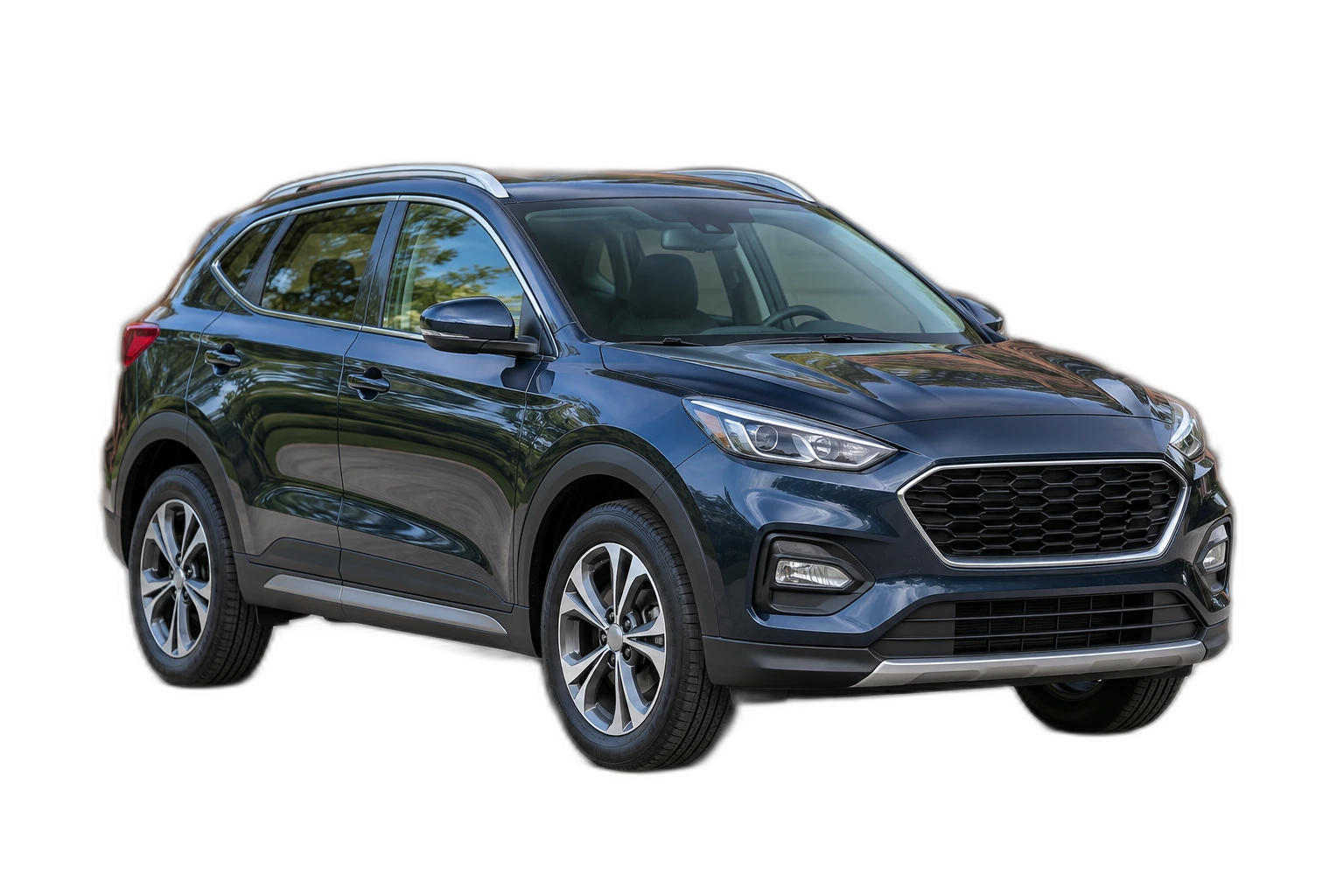
Open tool ↗Isolate a vehicle from a distracting parking area or street scene. Keep the car’s existing appearance, then position the cutout on a simple colour or another…
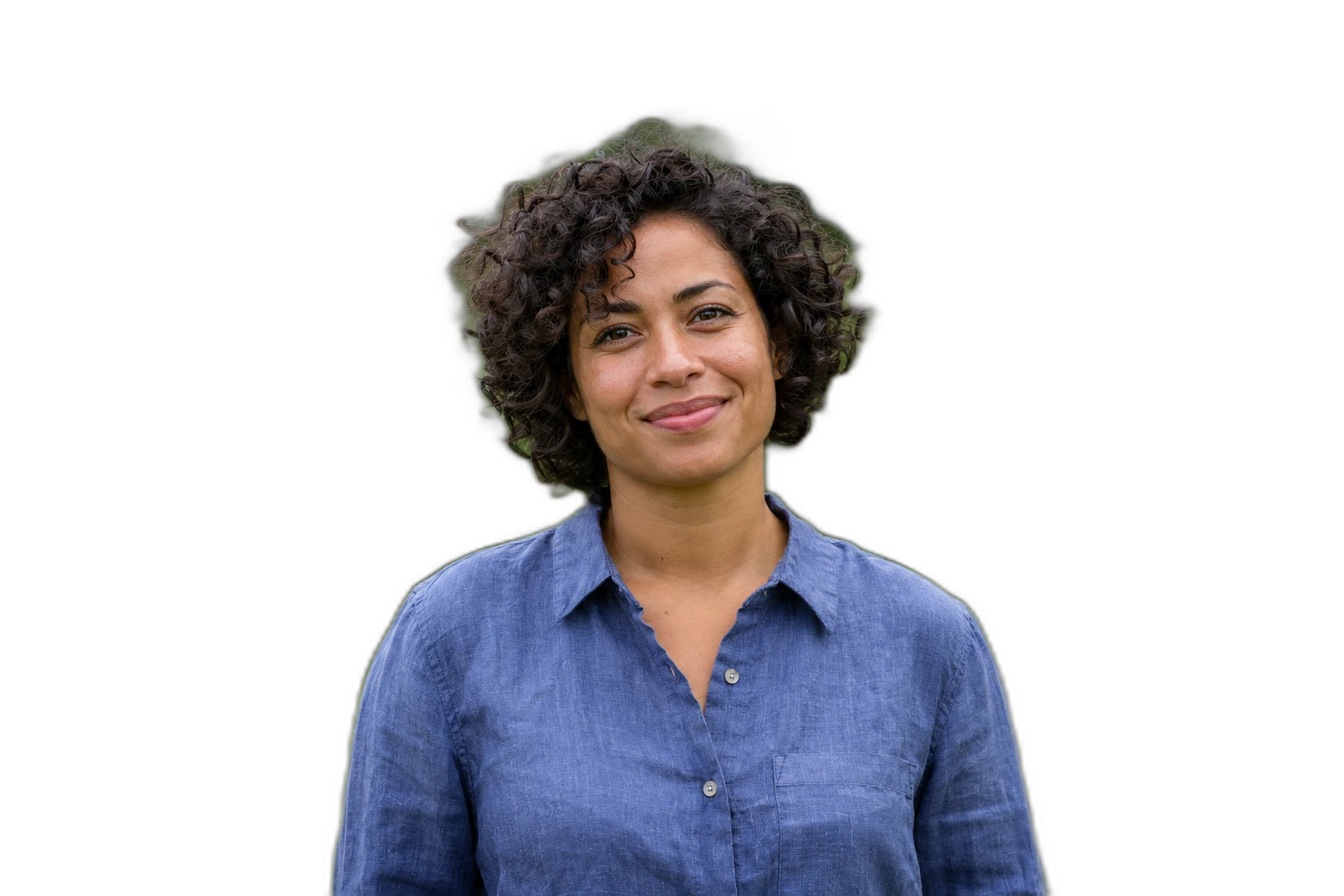
Open tool ↗Prepare a portrait cutout while paying attention to flyaway hair and soft edges. Automatic removal is a starting point; the brush tools help correct the result.
Open tool ↗Remove an opaque white backdrop while keeping the foreground. Save the cutout with an alpha channel so it can sit on a different design.
Open tool ↗Separate a subject from a dark backdrop and export transparent pixels around it. Check shadowed edges carefully before reusing the cutout.
Open tool ↗Turn a green-background photograph into a transparent cutout. This page is for static photos, with mask editing before PNG or WebP export.
Open tool ↗Place your existing subject on a dark canvas for a simple, high-contrast composition. The editor opens on this page with black selected.
Open tool ↗Replace a distracting portrait backdrop with neutral grey. Start with a 4:5 canvas, then position the face and shoulders without changing their proportions.
Open tool ↗Build a dark catalogue composition from your own product photograph. Keep the product’s original colour and texture while replacing the space around it.
Open tool ↗Create a reusable portrait cutout for a presentation, poster or page layout. Keep an alpha-channel master so you can place the same person over different designs.
Open tool ↗Keep your own selfie while replacing a distracting room or outdoor scene. Upload another backdrop or choose a flat colour after removing the original background.
Open tool ↗Keep the subject and choose a new solid colour behind it. Use a preset swatch or the custom colour control for a simple, consistent canvas.
Open tool ↗Place your existing subject over a background photograph you choose. Remove the original backdrop first, then build the composition in the editor.
Open tool ↗Put a solid colour or your own photograph behind a PNG cutout. Choose the output format based on whether you need an opaque composition or a reusable transparent…
Open tool ↗Check whether a grey-and-white grid is real image content or just a transparency preview. Only a grid baked into the source needs background removal.
Open tool ↗Keep the empty pixels around a cutout when downloading and moving it between applications. The background setting and export format both matter.
Open tool ↗JPEG does not support an alpha channel. To keep a cutout’s background transparent, remove the backdrop and download PNG or WebP instead.
Open tool ↗Remove backgrounds from several JPEG photos and download the edited PNG results together. This workflow changes both the background mask and the output format.
Open tool ↗Keep useful source resolution when removing a background. Start with the original photo and export the edited cutout rather than a screenshot or small preview.
Open tool ↗Use the web editor to upload a photo, review its cutout and download a transparent PNG. No separate background-removal app is required for this workflow.
Open tool ↗Prepare a cutout from an Android phone using the web editor. Upload an individual image, correct the result and save a new PNG or WebP.
Open tool ↗Create a square portrait cutout with empty pixels around the subject. Keep the transparent version for designs that support it, or add a colour for a flat avatar.
Open tool ↗Prepare a blue-backed portrait when your intended use calls for that colour. The editor on this page starts with a light blue canvas and a 4:5 composition for…
Open tool ↗Replace the surroundings of a portrait with white and check its outline carefully. This editor changes an existing image; it does not certify a passport or…
Open tool ↗Process individual still photos from a booth or event and reuse the cutouts on your own backdrop. A physical green screen is not required to try automatic removal.
Open tool ↗Separate foreground people from their surroundings and save a transparent composition. Inspect the group before deciding which parts to keep.
Open tool ↗Place your own subject on a soft green 9:16 canvas, then export a still image for a vertical story composition. Edit the file here before uploading it to your…
Open tool ↗